For getting comfortable at the terminal
6 chapters · 25 lessonsAbout 3.5 h
Terminal Advanced
A free advanced course covering shells, processes, permissions, and SSH. Practice real system administration commands in your browser.
This course continues from Terminal Basics
About this course
Go beyond just using the terminal and truly understand how it works. This course covers what Terminal Introduction and Terminal Basics didn't: how shells work, what processes are, and how to customize your environment.
Streamline your workflow with aliases and environment variables, reduce typing with globs and brace expansion, and learn server administration fundamentals including permissions, user management, and SSH. Six chapters and 25 lessons of in-depth content.
After this course, you won't just "use" the terminal. You'll understand it. A solid foundation for careers in infrastructure, DevOps, or backend development.
Sample Lessons
Skills you'll learn
How the Shell Works & Customization
Understand shells and processes, then build your own efficient environment with config files, aliases, and environment variables.
Efficient Input Techniques
Master globs, brace expansion, and escaping to accomplish more with fewer keystrokes.
Server Administration & Networking
Learn permissions, user management, process control, cron, and SSH: practical Linux admin skills.
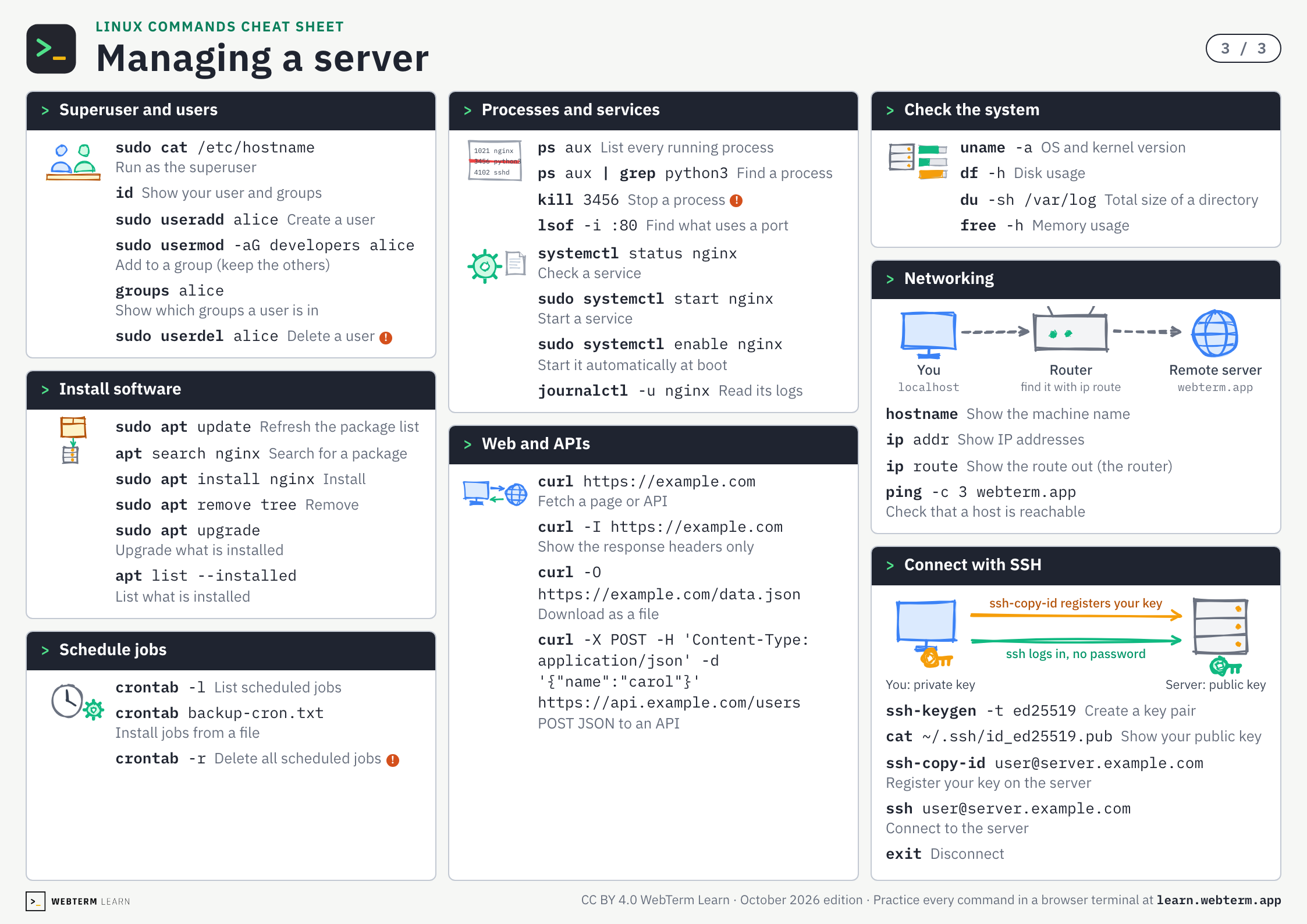
Linux Commands Cheat Sheet
Every command from the three terminal courses on three A4 pages. The PDF is free and prints as is.
Who this course is for
Want to Understand the Terminal More Deeply
Go from "it kinda works" to truly understanding how things work under the hood.
Want to Optimize Your Workflow
Aliases and environment variables will make your daily work noticeably smoother.
Want to Learn Server Administration or DevOps
Permissions, process management, SSH: practical skills that directly apply to real work.
Related Courses
Keys and commands
Shell Types
Practice →echo $SHELL- Show which shell you use
Shell Configuration Files
Practice →source ~/.zshrc- Reload the config
Aliases
Practice →alias rm="rm -i"- Create a shortcut (alias)
alias- List your aliases
\rm notes.txt- Run a command without its alias
echo 'alias rm="rm -i"' >> ~/.zshrc- Save it in your config file
Shell Variables
Practice →PS1=">> "- Change the prompt
Environment Variables
Practice →export EDITOR=vim- Set an environment variable
printenv EDITOR- Show its value
echo $PATH- Show where commands are looked up
Globbing
Practice →*- Any number of characters
?- Exactly one character
[abc]- One of a, b or c
ls report_?.txt- Names differing by one character
ls report_[abc].txt- Names with one of the listed characters
Brace Expansion
Practice →{1..5}- Expands to 1 2 3 4 5
touch log_{1..5}.txt- Create numbered files at once
Escaping Special Characters
Practice →cat "project/my notes.txt"- Quote names that contain spaces
Shell Features
Practice →!!- Run the last command again
File Permissions
Practice →ls -l- Check permissions
chmod 755 deploy.sh- You: all; others: read and run
chmod 644 index.html- You: read and write; others: read
chmod 600 id_rsa- Only you can read and write
Running Commands as Administrator
Practice →sudo cat /etc/hostname- Run as the superuser
Managing Users and Groups
Practice →id- Show your user and groups
sudo useradd alice- Create a user
sudo usermod -aG developers alice- Add to a group (keep the others)
groups alice- Show which groups a user is in
sudo userdel alice- Delete a user
Package Management
Practice →sudo apt update- Refresh the package list
apt search nginx- Search for a package
sudo apt install nginx- Install
sudo apt remove tree- Remove
sudo apt upgrade- Upgrade what is installed
apt list --installed- List what is installed
System Administration Commands
Practice →uname -a- OS and kernel version
df -h- Disk usage
du -sh /var/log- Total size of a directory
free -h- Memory usage
Managing Processes and Hardware
Practice →ps aux- List every running process
ps aux | grep python3- Find a process
kill 3456- Stop a process
lsof -i :80- Find what uses a port
Managing Services
Practice →systemctl status nginx- Check a service
sudo systemctl start nginx- Start a service
sudo systemctl enable nginx- Start it automatically at boot
journalctl -u nginx- Read its logs
Scheduled Tasks
Practice →crontab -l- List scheduled jobs
crontab backup-cron.txt- Install jobs from a file
crontab -r- Delete all scheduled jobs
Checking Network Status
Practice →hostname- Show the machine name
ip addr- Show IP addresses
ip route- Show the route out (the router)
ping -c 3 webterm.app- Check that a host is reachable
Using curl
Practice →curl https://example.com- Fetch a page or API
curl -I https://example.com- Show the response headers only
curl -O https://example.com/data.json- Download as a file
curl -X POST -H 'Content-Type: application/json' -d '{"name":"carol"}' https://api.example.com/users- POST JSON to an API
Connecting Securely with SSH
Practice →ssh-keygen -t ed25519- Create a key pair
cat ~/.ssh/id_ed25519.pub- Show your public key
ssh-copy-id user@server.example.com- Register your key on the server
ssh user@server.example.com- Connect to the server
exit- Disconnect
BEGIN YOUR
JOURNEY
Join thousands of developers who've mastered the terminal. Your first lesson awaits.
Get Started →